IPS monitors for photo editing

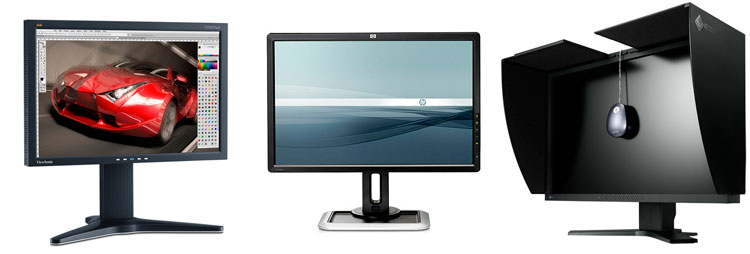
Three IPS Panel Monitors: a Viewsonic, an HP DreamColor, and an Eizo with hood and colorimeter.

Is the monitor really that important?

The quick answer: YES, absolutely.

IF YOU CAN’T SEE THE COLOR AND TONAL DIFFERENCES on your monitor, then you can’t make good post-processing decisions and adjustments to your digital negatives. It’s that simple. You can’t adjust your curves to give your print smooth tonal transitions or to distinguish subtle shadow detail if you can’t see those transitions and details to begin with.  In order to make optimal adjustments to your digital negatives, you must be able to see as much of your color gamut as possible and the color must be accurate and reliable.

Monitor Technology : IPS vs. TN
 

TN Monitor

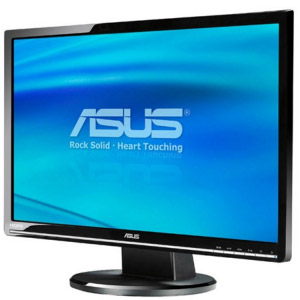
This ASUS is a typical desktop monitor. About ##http://www.amazon.com/gp/product/B001LYWBOM?ie=UTF8&tag=lighandmatt-20&linkCode=as2&camp=1789&creative=390957&creativeASIN=B001LYWBOM##$200## for a 24" screen, but it will not have the color response needed for photo editing.

TN stands for Twisted Nematic, which is by far the most popular and wide-spread screen technology. If you have a standard or even higher-end “gaming” LCD monitor for your PC, this is what you have (the same is not true for some Macs). TN screens initially gained popularity because of their low energy consumption, but also because of their quick response time, which is important in reducing ghosting and producing smooth motion for gaming and video. Most TN monitors these days advertise response times of 2-6ms , though they are not always measured in the same way, so comparison is difficult. They are also very bright and are being made with increasingly high resolution, so they appeal to most average consumers. They’re also the cheapest monitors on the market.

More importantly for photographers, though, is that TN monitors use 6-bit color technology, and therefore can’t display the full 24-bit color range (16.7 million colors) that video cards can produce (and that the monitor manufacturers usually claim they can produce). Instead, they attempt to simulate the full range of colors by interpolation of other colors, which they do with limited success. Many TN monitors (non-LED) display less than 30% of the NTSC color gamut, and the color that they do display is only accurate when viewed head-on, so the appearance of color shifts when viewed from and angle is dramatic, and problematic around the edges in any circumstances. Improvements are continually being made in TN technology, but they have a long way to go.
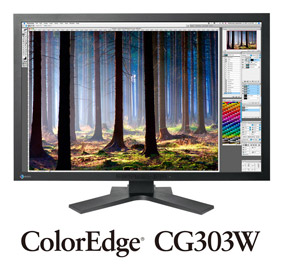
Eizo makes some of the best editing monitors available, using IPS and PVA technology.

IPS panel monitors, on the other hand, have a different set of advantages and disadvantages. IPS stands for In-Plane Switching, although modern IPS panels actually make use of a variety of improved technologies, such as S-IPS,  H-IPS,  AS-IPS, and E-IPS. Engineering details aside, the main advantages to IPS panels is that they are truly 8-bit technology (or 10-bit), with many IPS monitors producing 125% or more of the number of colors in the NTSC gamut. Second, the colors do not shift when viewed from different angles; most remain accurate well past 170 degrees. But of course, there are disadvantages as well, though they are also improving. Initially, the IPS technology was much slower than TN, with response rates of 20-50ms. This made it unusable for video and gaming. S-IPS and a variety of “turbo” technologies have now improved that rate, and 14ms and faster speeds are common, making them very suitable for video, though still somewhat less desirable for gaming.

IPS monitors have been much more expensive as well, though the gap is beginning to narrow.  Even a year ago, the most common IPS monitors (Mac Cinema Displays) cost three times as much as similarly sized TN screens, but now 23″ IPS monitors can be found for as little as $300. Professional graphic arts monitors using IPS and other less common technologies still cost thousands of dollars, though.

S-PVA is another excellent but less common technology. Like IPS, S-PVA panels use at least 8-bit technology, have very good gamut coverage, and colors do not shift when viewed off angle.

Standard Gamut vs. Extended Gamut
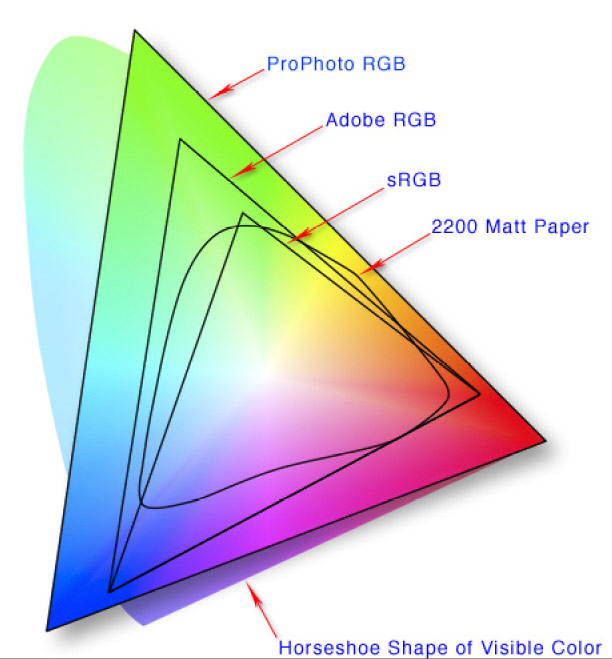
colorspace gamut comparisons

Image Courtesy of Wikipedia.

Photo editing monitors can be broken down into two main categories: Standard Gamut (sRGB) and Wide or Extended Gamut. Standard gamut monitors generally attempt to display all of the colors in the sRGB color space, while extended or wide gamut monitors attempt display a larger gamut, such as that found in the AdobeRGB color space.

Most people immediately assume that “more colors = better” and decide that they need an extended gamut display. However, the matter is slightly more complicated than that.

Although extended gamut displays work wonderfully for their specific purpose with programs that support them, they are generally not great for general purpose use. Keep in mind that photos on the internet are virtually all sRGB, and more importantly, our browsers display them as sRGB. When a program’s sRGB output is displayed on a wider gamut monitor, though, the colors can go wild! They frequently shift and become over-saturated, others may look washed out. To deal with this, most wide gamut monitors have separate profiles for different uses, and you need to switch between them depending on what you’re doing, or, if properly set up, a color managed operating system can sometimes switch for you. (Color management is too complex and beyond the scope of an article like this, but a quick Google search will help)

And if you only publish to the web or publish through online printers who only accept sRGB jpgs (as many wedding and portrait photographers do), then there is little advantage to using a wide gamut monitor anyway, since your output is ultimately going to be sRGB.

However, if you do fine art printing at a high quality lab that can accept your files in a wide gamut format (Adobe1998 or ProPhotoRGB) or if you print on a professional quality inkjet printer in your own digital darkroom, it’s worth the effort to use an extended gamut monitor. If you have a workstation that is dedicated to photo editing (or a similar project with the need for wide gamut display), making the decision to get a wide gamut monitor should be even easier.

Which Monitor Should I Get?

The answer, of course, depends on your budget. You can spend anywhere from $300 to $3000 or more.  In this case, however, it is a safe bet that even the cheapest options will be dramatically better than what you’re currently using (if you’re using a standard TN desktop workstation screen).

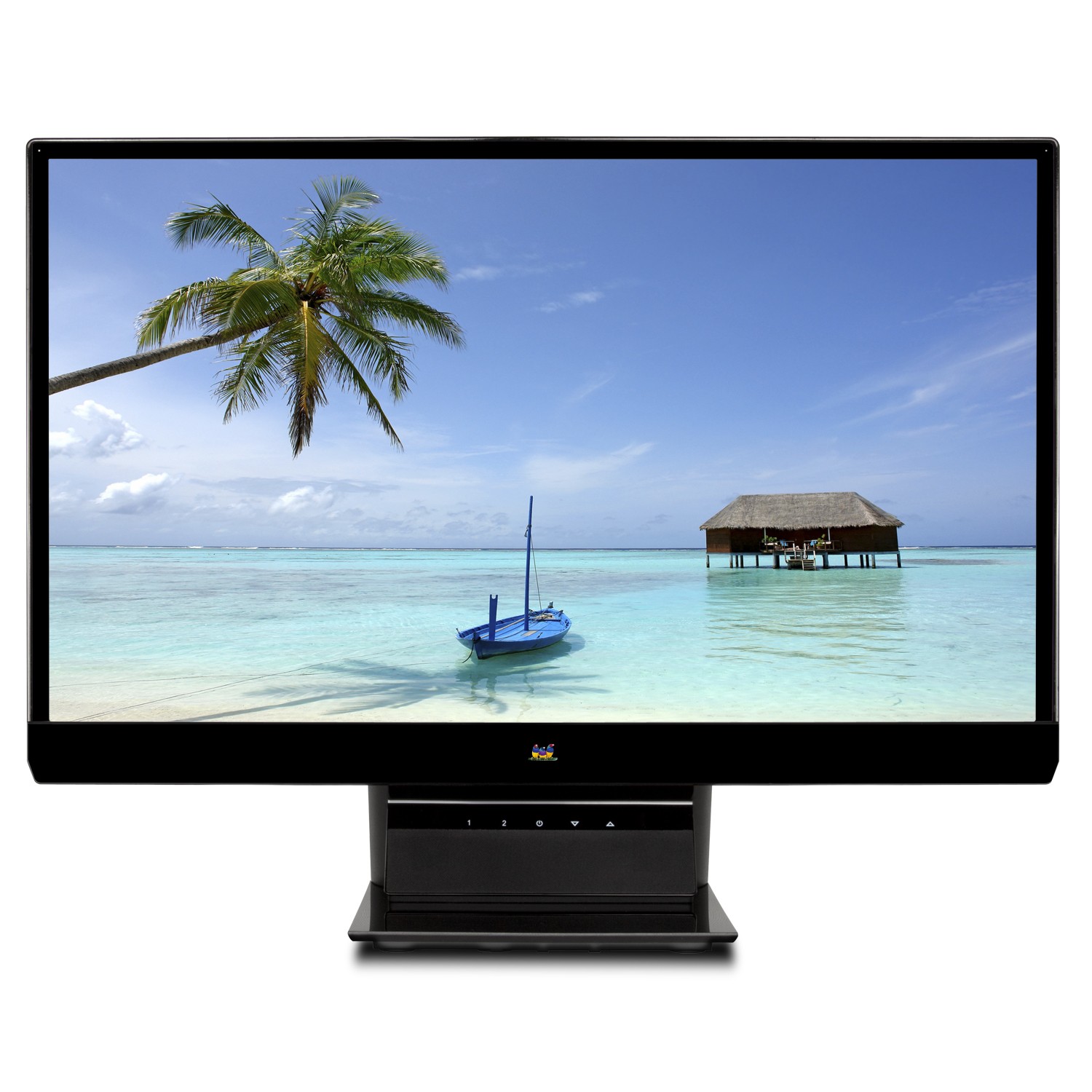
The ViewSonic is a great entry level editing monitor, at only##http://www.amazon.com/gp/product/B002R0JJYO?ie=UTF8&tag=lighandmatt-20&linkCode=as2&camp=1789&creative=390957&creativeASIN=B002R0JJYO## $300 for a 23" IPS screen##.

On the low end of the price spectrum, Viewsonic has recently begun producing 23″ and 26″ IPS wide-screen monitors that are very competitively priced. The 23″ model (VP2365wb) runs about $299, while the 26″ model (VP2655wb) is about $942. Each maintain consistent color even when viewed from a 178 degree angle. The 23″ model was designated a “best buy” in one of the PC magazines this month due to its great performance and reasonable price, and the larger screen is even better if you can afford it. They don’t provide specific gamut details, but I’ve never seen bad numbers for an IPS monitor, and those who have switched (even from Macs) have been very happy with them.

In about the same price range, the NEC EA231WMi is an equally good (or better) option that uses an eIPS panel. It covers 96% of the sRGB color space, and is well built. Street Price is about $285.

LG has recently begun producing a low budget 23″ IPS monitor as well, (the IPS236V) which can be found at NewEgg for as little as $239. Unlike the other monitors in this price range, the LG unit is LED lit, for lower power consumption. So far, all indications are that the monitor has good color reproduction but needs calibration, and there have been a few complaints about uneven brightness, though this may have been a problem with particular units.

Only a little more expensive is the HP ZR24w, a 24″ display that costs around $399, though they are becoming hard to find. Reports are that once it is calibrated, it has extremely accurate color… even more accurate than monitors that cost twice as much. The HP LP2475 is a bit more expensive still, but its price has dropped nearly $100 in the past 3 months, and is a great deal at $490.

If you can afford to spend a bit more money, the options open up tremendously, and the potential for enhanced performance also increases.

The new DELL U2410 is an an impressive monitor for the price. At only $540, it provides 100% sRGB coverage and 96% of AdobeRGB, with 12-bit internal processing… not to mention built in card readers, USB ports, etc.  Early production models of this monitor had some dithering problems that have since been corrected with updated firmware, so they should not be a problem. Because this is a true extended-gamut monitor, operating systems prior to Windows 7 (that don’t manage your color) will make this monitor difficult to use. (Some users of this monitor complain of a pink-green shift across the screen. It’s unclear whether this is true with the newer updates of this model, as many people also claim that there is no banding or color shift. This may be a case in which you’ll have to order and replace with another unit if you have problems).
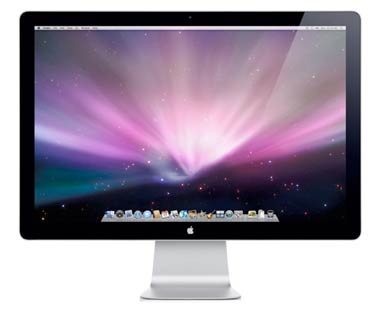
A popular option. Slightly less expensive when NOT purchased directly from Apple.

Another very popular option is the Apple 24″ Cinema Display. Apple Cinema Displays have been  standard workhorses of the graphic art trade for years, and they’re one of the reasons that Macs have kept such a strong hold on the industry. They’re more expensive than some similarly performing models (around $880 for a 24″), but have a reputation for quality. Some people have reported problems with reflections on the glossy screen surface.

If high performance is more important to you than sticking to a tight budget, there are a few monitors that fit the bill.

The HP DreamColor LP2480zx is probably the nicest monitor that I’ve ever had the opportunity to use. It is a 10-bit monitor, covering a full 100% of the AdobeRGB color space. The difference between this monitor and the Apple Cinema Display that I’m more familiar with is clear from the first moment that I used it; I could actually see more in photos than I had previously realized was there. This does come at a price, though… about $1850.

Similarly, the Eizo ColorEdge CG241W (and related monitors such as the CG243W, etc.) is a stellar performer. If you’d like to read a full comparison between an older Eizo monitor and an Apple Cinema Display, let me direct your attention to the Luminous Landscape article that first drew my attention to Eizo monitors, here: The Eizo ColorEdge CG301W vs. The Apple 30″ Cinemadisplay. Again, the performance comes at a cost… especially if you opt for the 30 inch versions of these monitors, but even at 24″, the cost is substantial at $1900.

There are, of course, numerous other excellent monitors out there. In fact, I haven’t even mentioned the offerings from major companies like Samsung (though I left them out on purpose) and LaCie. I’ve listed some additional monitors in the table below, but I hope that everyone reading this will add their experience and input as well. I hope that this helps!

[Since there are more monitors than I can reasonably test myself, I've listed monitors with which I've had personal experience, for which I've heard good recommendations from reliable sources, or about which I've read multiple convincingly good reviews. If your favorite monitor has been left out, feel free to email me or reply to this thread with relevant info. -JMG]

BrandModelPriceScreen Size / Aspect RatioResolutionPixel Pitch
(Smaller is Better)
Panel TypeResponse Time / Contrast RatiosRGB or Extended GamutLUT Bit Depth% of sRGB Gamut Coverage% of Adobe1998 RGB Gamut Coverage
Apple27" Thunderbolt Display$949.99
27"2560 x 1440.233mmIPS12 ms
1000:1
sRGB8-bit per color76% (tested)
DellUltrasharp U2410$509.99
24"
16:10
1920 x 1200.27mmIPS6 ms
1000:1
Extended100%96%
DellUltrasharp U2711$866.0027"
16:9
2560 x 1440.233mmIPS6 ms
1000:1
Extended100%96%
DellUltrasharp U3011$1,289.25
EizoFlexScan SX2462W$1,150.9824"1920x1200.270mmIPS with overdrive5ms grey-to-grey
850:1
Extended12-bit per color100%98%
EIZOColorEdge CG241WToo low to display24"
16:10
1920 x 1200.27mmVA with overdrive6ms
850:1
Extended12-bit per color98%95%
EIZOColorEdge CG245W$280224"
16:10
1920 x 1200.27mmIPS with overdrive5ms
850:1
Extended12-bit per color100%98%
EIZOColorEdge CG243W$2,065.5724"
16:10
1920 x 1200.27mmIPS with overdrive5ms
850:1
Extended12-bit per color100%98%
HPDreamColor LP2480zx$2,290.21
24"
16:10
1920x1200.270mmIPS6 ms grey-to-grey
1000:1
Extended12-bit per color100%100%
HPLP2475w$583.9924"
16:10
1920 x 1200.27mmIPS5ms
1000:1
sRGB8-bitnot providednot provided
HPZR22w$262.8021.5"
16:9
1920 x 1080.2475mmS-IPS8ms
1000:1
sRGB8-bitnot providednot provided
HPZR24w$374.2924"
16:10
1920 x 1200.27mmS-IPS7ms
1000:1
sRGB8-bit97%not provided
HPZR30w$1,142.8830"
16:10
2560 x 1600.251S-IPS7ms
1000:1
Extended10-bit100+%111% (tested)
LaCie324i$113924"
16:10
1920 x 1200.27mmP-IPS6 ms
1000:1
Extended10-bitnot provided98%
NECLCD3090WQXi-BKPrice Not Found30"2560 x 1600.251IPS6ms grey to grey
1000:1
Extended12-bit100%98%
NECP221W$407.9122"1680 x 1050.2828ms grey to grey
1000:1
Extended10-bitnot provided96%
NECLCD2490WUXi2-BKToo low to display24"
16:10
1920 x 1200.27mmIPS8ms grey to grey
1000:1
sRGB12-bit97%75%
NECPA271WToo low to display
27"
16:9
2560 x 1440.233mmIPS7ms grey to greyExtended14-bit100%97.1%
NECPA241WToo low to display
24"1920 x 1200.27mmIPS8ms grey to grey
1000:1
Extended14-bit100%98%
NECPA231wToo low to display23"1920 x 1080.265IPS8ms grey to grey
1000:1
Extended14-bit--
ViewsonicVP2365wbPrice Not Found23"1920x1080.265IPS14 ms
1000:1
sRGB8-bit--

Additional Necessities

If you’re going to spend the money to get a good quality display, you’ll also need a color calibration system for it. In fact, this is true no matter what monitor you’re using… but it would be especially wasteful not to calibrate a high quality display. These can be quite inexpensive, and there are a variety of choices. Most high-end monitors are bundled with a colorimeter already. The Spyder models range in price from about $85 to a couple hundred, as do the models from X-rite, like the ColorMunki ($500) and Eye-One LT ($150).

It also makes sense to create color profiles for your camera using something like an X-Rite Color checker. It can dramatically improve the color accuracy of your photos, and is quite simple (see the videos here).

Additionally, you should keep in mind that some of these monitors use 10-bit or higher technology, and require specific graphics cards, and in some cases, the DisplayPort connector must be used rather than the standard digital output or HDMI. If you expect to use 10-bit or higher display technology, check with the monitor manufacturer to see what graphics cards are supported.

[If you'd like further information about building a computer specifically for Photo Editing, please see my article on Choosing the Best Computer for Photo Editing - JMG]

Related Posts:

  59 Responses to “Best Monitors for Photo Editing : Is it REALLY that important?”

  1. Hello Matthew,

    Thank you for the informative article. I noticed the only monitor with incomplete specs was the Apple Cinema Display. Since it’s been a few months now since you put this together, do you have additional specs for this and/or the newer 27″ Thunderbolt Display? I do post processing with Aperture and Nik Software, and print to a Canon Pixma Pro 9000 II. Right now I’m doing post on my 15″ MacBook Pro and want to step up a bit. Of course, going with the Apple 27″ is an option.

    • Hi Chip,

      Apple is not very good about releasing tech specs for its monitors, so I had been waiting for some good independent tests, which are now available. The new Thunderbolt 27″ is a standard gamut monitor, like the other Mac displays. It has a slightly smaller coverage of the AdobeRGB space than the 27″ LED Cinema Display: 76% vs 83%. They both cover the sRGB gamut nicely, though, and both are very color accurate and evenly colored across the screen.

      So, they’re both good (if expensive) options if you mostly care about web-work. If you work for print and want to make use of the AdobeRGB gamut, they’re not ideal. I can recommend the U2711, though… and the price is down to $879.

      Looks like it’s time for me to update this article again :)

      - Matt

  2. Thank you for such an informative overview on IPS monitors. I am just wondering if you reviewed any of the lower cost monitors such as the LG that offer , IMHO, a pretty good panel at a much reduced price. I am not saying they would be as good as compared to a $3000 unit but are at least a huge improvement over just about any TN panel monitor. I found that the HP and Dell that I was looking into at a $600 range were afforable but just about impossible to find to look at without ordering on line . I was however able to find , instore, LG monitors ( which I believe have the same IPS panel that are in the Dell and HP) under $300. I know the more professional units have a sturdier build and extras such as usb connections and they swivel and rotate, but I think it is nice to at least have another innexpensive option that gets a user into the IPS world over the TN panels.

    • Actually… I’m not familiar with LG’s IPS monitors. Perhaps they’re relatively new? I’ll have to start doing a bit of research :) Thanks!

      - Matthew

    • I recently purchased the new ASUS PA246Q 24″ IPS monitor. After i got it calibrlted using an Eye1 Display2 monitor calibrator it’s great. I love it!!!! It is priced under $500.00. It has a nice large screen and is easy to move for viewing. I purchased mine from newegg.com If you get on and need help calibrating it feel free to contact me. Phillip Lang Jr. North Woods Studio Bowler, WI nwstudio@frontiernet.net

  3. Hi Matthew, I ordered the iOne Display 2 color calibrator today. this should help me get the monitor calibrated. I don’t remember if I mentioned that I spoke with one of the tech people from ASUS about calibrating the monitor. He said that in his 10 years of working at ASUS he had never heard of someone calibrating their monitor. I thought this to be rather odd. After I receive the iOne if I hae any questions at that time I will contact you. Maybe in the mean time you’ll have a chance to do some research on the monitor and it’s settings.

    Thanks,
    Phillip

    • iOne’s are pretty good, I’m sure it will work out well. That’s bizarre about the tech guy, although considering the fact that this is Asus’ first professional-grade monitor (that I’m aware of), I guess it’s not so surprising. Good luck :)

      - Matt

  4. Hi Matthew, The manual for the Spyder is dated 2001. I didn’t think it was that old! WOW how time flies.
    Is there a way I can email you the pdf of the manual?

    Phillip Lang

    • Hey Phillip,

      I’ve taken a quick look at the manuals, and I’m afraid that I’m not familiar with either one. That being the case, I don’t think that I’ll be able to offer any particular insight into their operation :( Unfortunately, this is a busy work season for me, so I don’t have the time I’d like to be able to delve into this at the moment… I have a good chunk of work to get done over the next couple of days…. so, if you haven’t figured it all out by the weekend, send me a message again, and I’ll see what I can do. Sorry I can’t be of more help at the moment!

      Come to think of it, there are several guys on this forum who are very technically astute. You might consider posting your question in the forums here, and see if anyone can offer you any advice there.

      - Matthew

  5. Hi Matt, The Spyder I have is an older one. On the box is says: CLV122 Spyder w/PhotoCal (CRT/LCD version. The software is version 2.7.7 This is one of the first spyders made. I hope this helps. I spoke with one of the tech people at DataColor who now sells the Spyder. He said that I should get a new Spyder because the older on can’t read the colors on the new LCD monitors. He said the Spyder3 Express would work for what I need.

    Thanks fro yor help.
    Phillip

  6. Hi Matt, Did you receive my message about the new ASUS PA246Q monitor I just purchased?

    Phillip

    • Hi Phillip,

      Yes, I did :) I’m actually not sure whether I’ll be able to help you with your specific equipment, but I’ll take a look at the documentation later this afternoon and get back to you.

      - Matthew

  7. Hi Matthew, Earlier in the year I contacted you about getting a new monitor. I purchased the ASUS PA246Q.
    It is an IPS 24 inch. Very Nice!. I need some help getting it calibrated. I have an older ColorVision Spider color calibrator. Software V 2.7.7. Here is the link for the specs on the monitor http://usa.asus.com/Display/LCD_Monitors/PA246Q/#download

    Here is the link for the manual http://support.asus.com/Download.aspx?SLanguage=en&m=PA246Q&p=13&s=28

    I mostly do photographs of people: High School Seniors, Families, Weddings, Undergrads, etc.
    I am convussed on what Mode to use: Standard, sRGB, Adobe RGB, Scenery, Thearter or User.
    Depending on the mode selected, your functions as far as setting Brightness, Contrast, Saturation, Hue, Color Temperature, Gama and RGB are limited.
    I need to know which mode to use with the spider calibrator. When using the Spider do I select that the monitor has RGB settings, temp is 6500K or no settings?

    If possible I would like to give you a call to go through this step by step.

    Thanks,
    Phillip Lang Jr. North Woods Studio Bowler, WI nwstudio@frontiernet.net

    • Hey Phillip, what Spider model are you using? The one that I used before was pretty simple… basically, you’s set the monitor to “user” and set a couple of basics, and then the rest would be adjusted by the Spider’s software. I’ll need to see the specific documentation for your spyder, though.

      - Matt

  8. Matt,

    Are the LCDs on the MacBook Pros the same type as the Cinema Display? I calibrate my screen often and the caliration method allow me to use color spaces beyond AdobeRGB. I think I still need to get something like a ColorMunki or something especially if I intend to start printing. Then again, I need to get a good printer like the Canon 9000 series or the Epson 4900.

    Alfred

    • It depends on the size; the 13″ don’t use IPS panels, the 15 and 17″ use S-IPS, though they’re standard gamut. Actually, even the Cinema displays are only standard gamut, so although you can set your documents to be using extended gamuts (AdobeRGB or ProPhotoRGB (which is what I use) the monitor will not actually display those extra colors.

      - Matt

    • I take that back. I’m getting conflicting information about whether MacBook Pros are currently using IPS panels. I’ll see if I can get a definitive answer from Mac.

  9. Great article, Matthew! I checked the cheaper option you recommend (the ViewSonic VP2365WB) on Amazon. Currently selling for $289. Says it has a USB connection from PC to the monitor, so hopefully I can save up and use this for my Dell laptop. Thanks for the tip in my other thread!

  10. Have you heard of the ASUS PA246Q? If is an IPS monitor and looks very impressive.

    • Hmm… a P-IPS monitor from Asus. Very interesting. I actually haven’t seen one of these, but I’m just looking at the stats now, and it looks pretty impressive. Wide gamut, inexpensive… 10-bit lut. Looks like it could be a really good choice. I see that it’s $487 at J&R. I’ll have to look into this one a bit more myself.

      - Matthew

      • After you have researched this, please let me know what you think. Thanks Phillip

        • It looks as though this monitor has only been around for since February, so there isn’t a whole lot of user-information available. So far, though, I’ve read a dozen reviews or so and the color reproduction seems impressive. It seems that it’s brighter than many IPS monitors (out of the box, but adjustable). The only real complaints that I’ve heard have been regarding a couple of bright pixels. Asus, however, has a no-bright-pixel policy, so if you get a bad one, you can return it. So far, this looks like a really good option to me. I’d certainly be willing to give it a shot. (J&R is cheaper than Amazon, Buy.com, newegg.com)

          - Matthew

  11. Hi Matthew, Well I am still struggling with the monitor issue. I thought I set on getting the Dell U2410 but the more I thought about the revision numbers and the color shifting I’ve read about the more at ease I felt. I guess I’m back to starting over. I have looked at the HP LP2475W and the ZR24W. I guess out of these two which you recommend? I wish there was a place where you could go and look at them!

    • Yeah, the problem is that the differences in two monitors like this really depend on how well they’ve been calibrated, and you still have to look at them next to each other (and I haven’t). I think that I’d lean towards the ZR24w, but they’re very similar and I’m sure you’d be happy with either one.

      You might take a look at the user reviews of the two on Amazon, and see if you get any useful tips there.

      - Matthew

  12. I called Dell and asked the about the revision: A03 & A04. They said that they are only showing A02. I’m also seeing on the internet A05. This is getting more confussing! Now what do I do?

    • Yes, that was the impression that I got from the Dell forum; the A02 is the newest firmware… and the other designations are related to slight differences according to the factory at which they were built.

      If this is the monitor you’re pretty well set on, I probably wouldn’t worry too much about the revision numbers… just get one from a place that is not going to sell you a monitor that’s been sitting around in stock for a year and you’ll be fine.

      - Matt

  13. I have been doing some more research on the Dell U2410 and have found that some of the sellers are showing different revisions, A03 & A04. Do you know what the difference is?

  14. What are you using to find the deals on the monitors?

    • Nothing in particular. I generally check my favorite places and the places that Light & Matter affiliates with… amazon and buy.com usually have the best prices, but I prefer to order from J&R when they have what I need, for the customer service, etc.

  15. It looks like I’ll be getting the Dell 24″ Thanks for all your help. Phillip

  16. I found a Dell U2410 for $470.00 new. So between the Dell and the HP you told be about, which one would you recommend?

    • That sounds like a good deal… where did you find it? I’d go for the Dell, but in large part because I use extended gamut and would always at least want to have that capability. In either case, I think that the Dell has 100% coverage vs 97% coverage of sRGB (maybe not a visible difference)… which gives it a little leg up. They’re both great monitors, though. The only drawback for the Dell is the potential for weird color renderings in non-color managed programs.

  17. Photographs are all brought into Photoshop taken under the sRGB color space. Everything I do is in sRGB. You said that then I may not need a monitor with the extended gamut. Any suggestions? I still want a monitor with the IPS.

  18. The computer that this monitor will be connected to is my studio computer for photo editing and desk top publishing. I do not go on the internet with it. I have another computer for that. With that in mind what color gamut would I set on the monitor. My color profile is set to sRGB in Photoshop. Wouldn’t I have the same set on the monitor.

    • You shouldn’t have a problem using Photoshop; it does manage colors. You’d still want to leave the monitor set to display the full gamut; when you import photos that are in AdobeRGB or ProPhotoRGB , then you’ll at least be able to see the difference when it’s reduced down to sRGB.

      Of course, if you’re not interested in getting the colors beyond the sRGB gamut, you might consider buying an sRGB monitor instead of an extended gamut one… they’re generally less expensive, too.

  19. Hve you heard of DoubleSight monitors? They have a 27″ (ds-277w)
    Another photographer told me that I should get an LED not LCD type monitor.
    I see that all the high end IPS monitors are LCD. I confussed again.
    What is the difference?

    • Hey Phillip,

      Actually, LED is a type of LCD monitor. Basically, it means that the LCD panel is back-lit with LED lighting instead of the more typical fluorescent panel. Some people find that the LEDs are more color consistent over their lifetime (and across the screen), and they are more energy efficient. Some people have complained that they create uneven brightness, though; that may depend on the manufacturer.

      Anyway, I’ve never seen a DoubleSight in person (but I can certainly see the draw; I just found a 27″ one at buy.com for $802 ). I’ve seen a couple of positive reviews, but not from anyone that I trust, so if you end up getting one, I’ll be interested to hear what you think of it.

      The pixel pitch (.233mm) should be better than most 24″ screens, which would be nice, and it looks a $100 or so less expensive than the Viewsonic 26″… but I can’t find any information about its gamut.

      - Matthew

  20. I am still looking at differnet monitor types to make my decission from on which one to purchase. Have you heard of Hazro, they are out of the UK and suppose to have a couple of new monitors out that are IPS and very reasonable.

    • I’ve heard of the brand, but that’s about the extent of it, I’m afraid. I know that they use the same IPS panels as some very nice NEC monitors (the LCD2490WUXi, and countless others, I imagine… most of the panels are made in a few factories in Asia), but they’ll use their own look-up tables and internal processing, so the panel alone isn’t a sufficient indicator of display quality.

      - Matthew

  21. I am looking at getting a new monitor. I am interested in either the NEC PA271W-BK or the Dell U2711 both are 27″ monitors, which one would you recommend or is there a different 27″ monitor that you would recomend?
    Thank you,
    Phillip

    • Hi Phillip,

      Of course, they’re both great monitors… but I’ve generally been more impressed with NEC’s line, and of course, the numbers show that it has a slightly larger gamut. I haven’t actually used the 27″ version of the Dell, but I’ve seen the problems with the earlier models of the 24″ and they leave a bad taste in my mouth. That said, even the newer productions of the U2411 that I’ve seen look great, so it may just be unfounded bias on my part.

      Perhaps others who’ve had experience with both monitors will weigh in here as well.

      - Matthew

      • I guess because of the price factor I am now looking at a 24″ monitor. I al still looking at a Dell, the U2410. You mention in your article about the 2410 having some color managment issues with operating systems earlier that Windows 7. I am running XP professional and using a Spider color calibrator to calibrate my monitor. WIll this work or not. In your earlier reply you mention that Dell is coming out with the U2411. Is this to take care of the color issues with the 2410?

        • Phillip,

          Sorry, that reference to the U2411 was actually just a typo… should have been U2410.

          In XP, the monitor will work just fine in color managed programs, but the operating system can’t determine which programs need which color settings, so you’ll probably have to switch between an sRGB preset on your monitor for web browsing, etc, and a full gamut profile for photo editing, etc.

  22. It seems in your article you left out a very impotent point of, should I get a standard gamut or wide gamut. The article sort of gives the idea that more is always better, that wide gamut is better then standard.
    After spending a week trying to decide if wanted a standard or wide gamut, I have learned that this is very important in making a decision on a monitor.
    The answer seems to be that if you print your own photos at home, or do color critical work, then you might want a wide gamut. If you post all your photos online, and print them online, then a standard gamut might cause you less trouble, and be more of a advantage.
    I ended up going with the HP ZR24w instead of the HP LP2475w because of this. The price difference between these two is only $80, and I almost went with the LP2475 before I learned that I really needed a standard gamut

    • Hi Todd,

      Yes, as I mentioned earlier, this article left a lot out; it needs additional information about gamuts and look-up tables, among many other things… but I also wasn’t trying to produce an expansive, definitive work on the subject of monitors. And I know that, unfortunately, most of my visitors don’t read longer articles.

      However, since you’re quite clearly correct, I’ll see if I can add in a little more information on the subject now. I appreciate the suggestion.

      - Matthew

  23. You let Samsung out “for a reason.” What is that?

    • Just because of some bad experiences I’ve had with their monitors (two of them). I don’t know how many other people have had the same problems with them, so I’m not going to assume that they’re just bad monitors… but I also won’t recommend something that I wouldn’t stand behind; so I’m just mostly leaving them out. :)

      - Matthew

      • I was wondering what Samsung monitors you had problems with and what kind of problems. I have the Samsung SyncMaster 245T. I bought it I think 3 years ago, because it was suggested as a good color editing monitor for photos then. It was $600. I have been frustrated at how the photos posted on my blog don’t match my original photos. I think it has to do with the part where you said that my monitor has an extremely wide gamut, so it just shows the colors off, because they seem to be fine on other computers or devices.

        I am not sure how I can get it to display a lower gamut???

        I have cailbrated it with a spyder3 and it’s color cailbration seems to match that of adobe RGB, so it it covers more than sRGB and I am guessing that is why it’s off?

        Should I keep my monitor or trade it in for a different one to get more accurate results when I view it? Or just change how it displays things?

  24. This article is a little disappointing as you have not addressed critically important points such as internal LUTs. and you’ve overlooked themost important line of monitors other than EIZO, NEC Spectraview, which are routinely recommended as the best choice after EIZO. They are a better choice, more often recommended by top industry experts, than any of the other models you discuss here, including Apple and LaCie.

    • Hi John,

      Thanks for the feedback. You’re right, of course… I left A LOT out of this article. I started writing it and found that if I did the topic justice, it would go on for pages and pages. Consequently, I just decided to quit writing and researching and see what crops up for comments.

      NEC Spectraviews are supposed to be great, but I’ve never used one. If you have, I’d love to hear your specific comments. Either way, I’ll do what I can to add them the next time I update the post. Three NEC monitors are listed in the second page of the table of monitors, incidentally… including the Spectraview LCD2490WUXi2.

      - Matthew

 Leave a Reply

(required)

(required)

You may use these HTML tags and attributes: <a href="" title=""> <abbr title=""> <acronym title=""> <b> <blockquote cite=""> <cite> <code> <del datetime=""> <em> <i> <q cite=""> <strike> <strong> <img src="" alt="" width="" class="" style=""> <span style="">

   
© 2012 Light And MatterSuffusion theme by Sayontan Sinha